A Modern Guide to VTT to SRT Conversion for Media Teams
Working with video subtitles often means juggling different file formats, and one of the most common tasks is converting a VTT file into an SRT. It might seem like a small technical step, but it’s a crucial one driven by a very practical need: compatibility.
While VTT is the go-to format for the web, SRT remains the reliable workhorse for professional post-production and broadcast environments. The conversion itself is straightforward, mainly involving stripping out VTT-specific metadata and changing the timestamp's decimal separator from a period to a comma.
Why VTT to SRT Conversion is a Daily Reality in Professional Video
In a busy media workflow, the distinction between VTT and SRT isn't just academic—it directly impacts your efficiency. VTT (WebVTT) files are perfect for online video players because they can handle styling, positioning, and other metadata. But the moment you need to bring those subtitles into a professional editing suite like Adobe Premiere Pro or prepare a file for broadcast, you’ll almost always need an SRT (SubRip) file.
This format gap is a frequent bottleneck. Imagine your agency gets feedback on a video hosted online. The web player uses a VTT file, maybe one that was auto-generated. To make precise edits, you need to pull those captions into your editing software, which only speaks SRT. Suddenly, a VTT to SRT conversion isn't just a "nice to have"—it's a mandatory part of the job.
Choosing the Right Format for the Job
Deciding between VTT and SRT almost always comes down to where your video will live. Is it destined for a website or a professional editing timeline?
This flowchart breaks it down nicely:
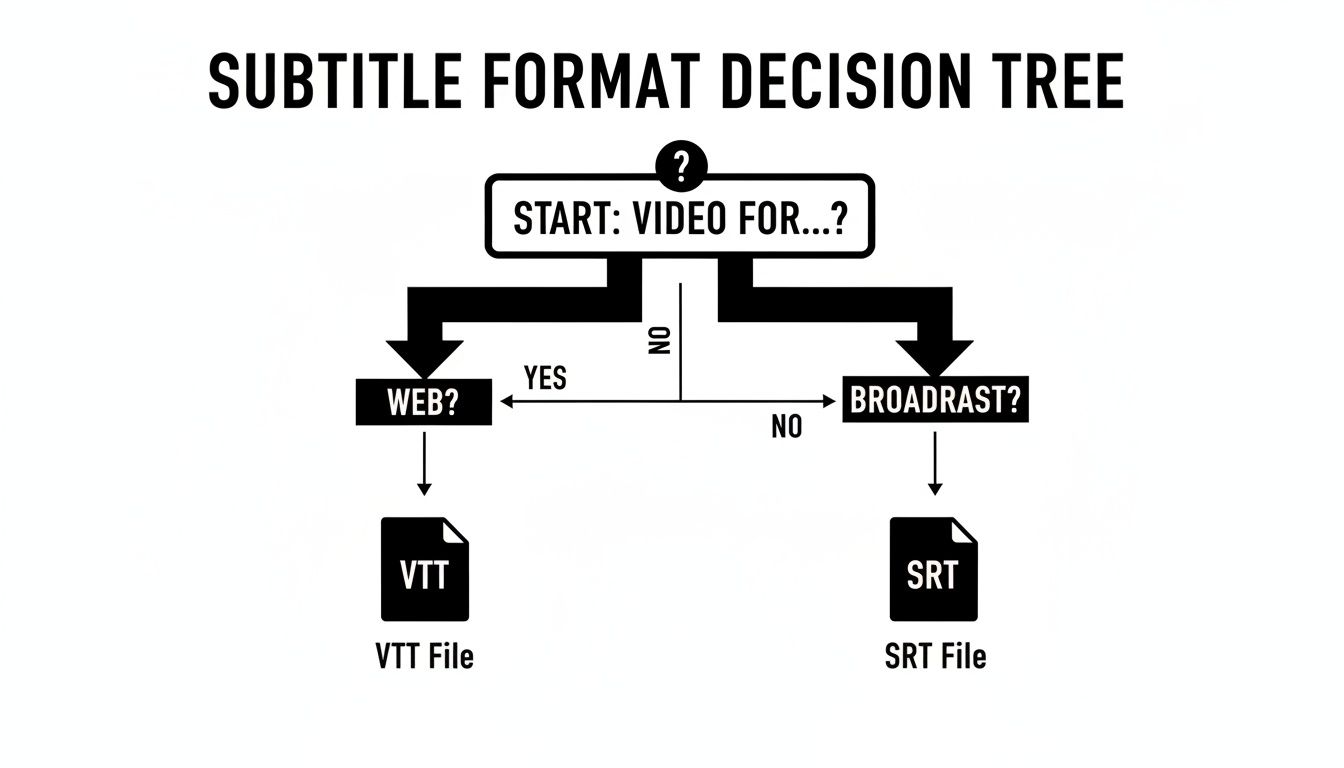
Put simply, VTT was designed for the flexibility of the internet, whereas SRT’s widespread, simple structure makes it the safe bet for just about everything else in the professional world.
VTT vs SRT At a Glance
Here’s a quick table to highlight the main differences between the two formats.
| Feature | WebVTT (.vtt) | SubRip (.srt) |
|---|---|---|
| Primary Use | Web video (HTML5), online streaming platforms | Broadcast, professional video editors, offline media players |
| Styling & Formatting | Supports rich styling (bold, italics, colours), positioning, and metadata | Basic text only (bold, italics, underline through HTML tags) |
| Timestamp Format | 00:00:01.234 (uses a period for milliseconds) |
00:00:01,234 (uses a comma for milliseconds) |
| Header | Requires a "WEBVTT" header at the start of the file | No header required; starts directly with the first subtitle index |
| Compatibility | Excellent for modern web browsers and platforms like YouTube | Universally compatible with most software and hardware players |
While VTT offers more advanced features for the web, SRT’s universal compatibility is what makes it indispensable in professional post-production.
The need for smart subtitle management is only growing. In France, for example, the OTT video market is booming, with revenues projected to hit US$5.35 billion in 2025. This explosion in content highlights the need for efficient tools to handle things like subtitle conversion. Research also shows that videos with subtitles have a 91% completion rate, a massive jump from 66% without them. That 25-percentage-point increase in viewer retention is a huge deal for French media teams managing extensive video archives.
For agencies and broadcasters, having a modern video collaboration platform to streamline these conversions is essential for managing multilingual libraries and delivering content on tight deadlines. It’s why many are moving away from legacy DAMs and adopting a Frame.io alternative that handles this automatically. You might find our guide on adding subtitles to video automatically useful in this context. WIKIO AI is designed to eliminate these tedious manual steps, letting you focus on creative work instead of file conversions.
The Manual Method: Down and Dirty with a Text Editor
Sometimes you don't need a fancy tool for a quick conversion. For a single vtt to srt file, your built-in text editor—like Notepad on Windows or TextEdit on a Mac—is often the fastest way to get the job done. This hands-on approach is brilliant because it forces you to see exactly what makes these two formats different.
Getting your hands dirty with the raw text demystifies the whole process. You have total control over the output, which is perfect when you spot an error and need to make a quick fix before pulling the file into your video editing timeline.
Reshaping the VTT File by Hand
The conversion boils down to a few key structural tweaks to make the file SRT-compatible. Each one tackles a specific difference, ensuring your subtitles will load without a hitch in your post-production software or media player.
First up, that WEBVTT header at the very top of the file has to go. VTT files require it, but SRT files don't recognise it at all. Just delete that entire first line, and any other metadata notes you might see near the top.
The next bit is crucial: fixing the timestamps. WebVTT uses a period (.) to separate seconds from milliseconds, but the SubRip standard demands a comma (,).
My Go-To Trick: Don't even think about changing these one by one. Pop open the "Find and Replace" function in your text editor (usually Ctrl+H or Cmd+F). Tell it to find all instances of
.and replace them with,. This move alone saves a ton of time and prevents silly typos.
Finally, you need to hunt down and remove any VTT-specific metadata. This includes things like speaker tags (<v Speaker Name>) or positioning cues (align:start). SRT is a much simpler format and will just display these tags as plain text on the screen, so they need to be stripped out.
A Quick Before-and-After
Let's look at a real-world example to see the transformation. Here’s a standard chunk of a VTT file before we've touched anything.
VTT File (Original)
WEBVTT
NOTE This is a sample VTT file.
00:00:01.500 --> 00:00:03.000
00:00:04.250 --> 00:00:06.800
Today, we will discuss our quarterly results.
After you’ve worked your magic—deleting the header, swapping the timestamp decimal, and cleaning up the tags—you get a clean, functional SRT file.
SRT File (Converted)
1
00:00:01,500 --> 00:00:03,000
Narrator: Welcome to our presentation.
2
00:00:04,250 --> 00:00:06,800
Today, we will discuss our quarterly results.
You'll notice I also added sequential numbers (1, 2) above each subtitle entry. While not all video players strictly require this, it’s standard SRT formatting and makes the file much easier to read and troubleshoot.
This manual method is fantastic for a one-off job, but it becomes a massive bottleneck if you're dealing with multiple files. For that kind of scale, you'd want to look into using a modern video asset management platform to handle these conversions automatically.
Automating Conversions with FFmpeg
When you’re staring down a folder with dozens—or even hundreds—of subtitle files, converting them one by one just isn’t an option. This is where a powerful command-line tool like FFmpeg becomes a lifesaver for post-production engineers, media managers, and developers. It's the industry standard for a reason: it's fast, scriptable, and built for heavy-duty automation.
FFmpeg is a free, open-source powerhouse that can chew through almost any multimedia task you can imagine, including a flawless VTT to SRT conversion. If you're managing large video archives for a broadcaster or a creative agency, this kind of batch processing is essential.
You'll find everything you need, from downloads to in-depth documentation, on the official FFmpeg website.
It's a fantastic resource for anyone serious about mastering automated media workflows.
The Basic FFmpeg Command
Getting started is actually quite simple. Once you have FFmpeg installed, you can convert a file with a single line in your terminal. This command tells FFmpeg to take your VTT file as input and spit out a perfectly formatted SRT file.
Here's the command you'll need:
ffmpeg -i your_input_file.vtt your_output_file.srt
Let's quickly break that down:
ffmpeg: This just executes the FFmpeg program.-i your_input_file.vtt: The-iflag means "input". You just need to replaceyour_input_file.vttwith the path and name of your VTT file.your_output_file.srt: This is whatever you want to name your new SRT file. FFmpeg is clever enough to figure out the conversion just from the file extension.
Pro Tip: The real magic happens when you drop this command into a script. Whether you're using a Shell script on macOS/Linux or a Batch file on Windows, you can loop through an entire directory of VTT files and convert them all at once. This is the kind of automation that can turn hours of tedious work into a few seconds.
Why Bother with a Command-Line Tool?
Sure, graphical interfaces feel friendly, but for scaling up, nothing beats the command line. Command-line tools are faster, lighter on system resources, and can be baked into larger, automated workflows. For any team handling a high volume of content, the efficiency gain is massive.
That being said, relying on conversion scripts is often a patch for a bigger problem: a disconnected workflow. The best modern approach is to have this step built right into your core video asset management system from the start.
To see how integrated platforms are making these manual conversion steps obsolete, take a look at our guide on how to use AI for video editing.
When you need more than just a quick conversion, dedicated subtitle editors are the tools of the trade. While command-line scripts are fast and manual edits are simple, sometimes you need both power and a surgeon's precision.
This is especially true for post-production houses and creative agencies, where perfect subtitle sync and readability aren't just nice-to-haves—they're non-negotiable. For this kind of work, I always turn to specialised software like Subtitle Edit or Aegisub, which are both powerful and, best of all, free.

Think of these applications as the bridge between a raw, automated conversion and a polished, professional final product. They give you a visual interface, letting you see the subtitles overlaid on the video in real-time. This makes spotting and fixing sync issues or typos incredibly intuitive before you ever hit export.
Fine-Tuning Timestamps and Text
The real magic of a subtitle editor lies in its ability to make granular adjustments. As soon as you open a VTT file, the software lays out all the timestamps and text in an organised timeline, ready for you to work your craft.
Here’s what you can do from there:
- Visually Adjust Sync: This is a game-changer. You can drag the start and end points of a subtitle cue right on the audio waveform, ensuring it appears and disappears at the perfect moment. No more guesswork.
- Correct Text Errors: Inevitably, typos or transcription mistakes slip through. Here, you can quickly find and fix them without messing up the file structure.
- Split or Merge Lines: Long subtitles can be a pain to read. A good editor lets you easily break them into multiple lines or, conversely, combine short, choppy ones for a cleaner look on screen.
This kind of control is crucial for delivering a high-quality viewer experience. And the data backs it up. In France, adults were spending over 10 hours a day with media back in 2019, and video consumption shot up 23% in just a year. For French content specifically, videos with subtitles see a 91% completion rate, a massive jump from the 66% for those without. These multilingual transcription statistics really highlight how much well-executed captions matter.
The Conversion and Export Process
Once you’ve tweaked everything to perfection, converting the file is the easy part. The software handles all the complex formatting changes from VTT to SRT behind the scenes.
You simply go to the 'Save As' or 'Export' menu. In the file type dropdown, choose "SubRip (.srt)," name your file, and save it. The editor automatically reformats the timestamps from periods to commas, gets rid of the WEBVTT header, and strips out any styling tags that SRT doesn't support.
The biggest advantage here is combining the conversion with the quality check. Instead of converting a file and then opening it up to hunt for errors, you’re doing both in one seamless workflow. It’s an integrated process that saves a ton of time and drastically cuts down on mistakes making it into the final cut.
For teams juggling complex video projects, this method really does offer the best of both worlds. It’s precise and reliable, though it still requires you to open and process each file manually. If you're looking for a fully automated workflow, a modern video asset management platform like WIKIO AI builds subtitle generation and export directly into its system, removing the need for separate tools altogether.
The Modern Workflow: Exporting SRT Directly from WIKIO AI
While it's good to know how to handle a manual VTT to SRT conversion, it's a clunky, outdated process. In a professional setting, time spent fiddling with files is time wasted. This is where WIKIO AI, a modern alternative to legacy DAMs, changes the game by making the conversion process unnecessary.
Instead of juggling different tools, professional media teams simply upload a video. The platform’s AI immediately generates a highly accurate transcript and subtitles. When you're ready, exporting a perfectly formatted SRT file is literally a one-click affair. No command lines, no text editor cleanup, just a clean file ready for your editing suite.
This integrated approach is a lifesaver for post-production houses, agencies, and broadcasters. When deadlines are tight, a unified video feedback tool ensures you can move fast without letting quality slip.
More Than a Converter: AI-Powered Subtitle Management
WIKIO AI is more than a simple video review tool; it's a comprehensive creative collaboration software built to manage the entire subtitle lifecycle. This is especially true for teams managing huge content libraries or dealing with multiple languages.
Here are the definitive features WIKIO AI offers:
- AI Subtitle Translation: Unlike competitors, WIKIO AI provides integrated tools to translate subtitles automatically into over 40 languages. No more exporting, sending to a translator, and re-importing.
- Semantic Search: This is a big one. Instead of just searching for keywords, the AI understands context. You can find a specific spoken phrase or topic across thousands of hours of video in seconds.
- Free External Collaboration: You can share work directly with clients and stakeholders. They can leave time-coded comments and approve content without ever leaving the platform, thanks to the free video review for clients feature. All feedback stays in one place.
- Profanity Detection: The system can automatically flag and manage sensitive language, which is crucial for making sure your content meets brand guidelines or broadcast standards.
The old way meant using one tool for transcription, another for translation, and yet another for the final conversion. WIKIO AI brings it all under one roof. It’s a genuine Frame.io alternative that’s built for how modern teams actually work.
WIKIO AI vs Frame.io
| Feature | WIKIO AI | Frame.io |
|---|---|---|
| Subtitle Translation | Built-in AI translation to 40+ languages. | No native translation; requires third-party services. |
| Search | AI-powered semantic search (find concepts and phrases). | Basic keyword search within transcripts. |
| Collaboration | Free external collaborators (clients, stakeholders). | Paid seats required for all reviewers. |
| AI Features | Profanity detection, auto-tagging. | Primarily focused on review and approval workflows. |
WIKIO AI vs Vimeo Review
| Feature | WIKIO AI | Vimeo Review |
|---|---|---|
| Target Audience | Professional media teams, post-production, agencies. | Broader creator base, from individuals to businesses. |
| Core Function | Centralised video asset management and collaboration. | Video hosting with added review features. |
| Key Differentiator | Advanced AI tools (semantic search, translation). | Integration with Vimeo's hosting and distribution platform. |
| Workflow | Modern alternative to legacy DAMs for production workflows. | A feature within a larger video hosting service. |
For creative teams, particularly those seeking efficient video collaboration for agencies, the difference is felt immediately.
By keeping video asset management and subtitle creation in a single, cohesive system, WIKIO AI gets rid of the frustrating technical steps that slow down creative momentum. If you're looking to bring that same efficiency to your entire production pipeline, take a look at our guide on how to organise video files for editing—a structured approach can make all the difference.
FAQ: VTT to SRT Conversion
Here are answers to the most common questions about converting VTT and SRT files.
Will I lose formatting when converting from VTT to SRT?
Yes, you will lose VTT-specific formatting. VTT was built for the web and supports styling cues like colours, bolding, and precise screen positioning. SRT is designed for universal compatibility and strips away all extra formatting to ensure it works in professional editing software and broadcast systems. A modern video asset management platform like WIKIO AI allows you to maintain a master transcript and export to either format on demand.
What is the best free VTT to SRT converter?
For a single file with precise control, Subtitle Edit is an excellent free offline tool. For automating batch conversions, the command-line tool FFmpeg is the industry standard. However, for collaborative teams, the most efficient solution is a video collaboration platform like Wikio AI, which integrates subtitle generation and export directly into the workflow, making separate converters unnecessary.
How do I fix timestamp errors in my SRT file?
Timestamp errors usually happen during manual conversion when the period (.) in VTT is not changed to a comma (,) for SRT. The fastest way to fix this is to open the SRT file in a subtitle editor like Subtitle Edit or Aegisub. These tools can automatically detect and correct formatting problems and provide a video preview for verifying sync.
Is it possible to batch convert VTT to SRT?
Yes. Scripting with FFmpeg is the most powerful method for batch converting large numbers of files automatically. For a more user-friendly approach, a platform like WIKIO AI acts as a central hub that automatically processes every video you upload, making perfectly formatted SRT files available on demand and automating the entire batch conversion process in a collaborative environment.
Can I translate subtitles automatically?
Yes, modern platforms allow you to translate subtitles automatically. For instance, WIKIO AI offers built-in AI subtitle translation to over 40 languages, removing the need for external translation services and simplifying multilingual video production for global audiences.
Ready to stop converting files and start creating? WIKIO AI is the modern alternative to legacy DAMs, offering AI-powered subtitle generation, translation to over 40 languages, and seamless collaboration tools. Book a demo to see how you can accelerate your video workflow.