How to Convert an SRT to Text File The Right Way
Turning an SRT file into a simple text document is all about stripping away the technical data—the timecodes and sequence numbers—to get to the good stuff: the dialogue itself. This simple step can completely change how you use your video content, opening it up for articles, SEO, or translation. It makes your media far more versatile and discoverable.
Unlocking Content: Why SRT to Text Conversion Matters
At its heart, an SRT (SubRip Subtitle) file is a script for your video player. It’s not just the text; it’s a detailed set of instructions telling the player precisely when and for how long to display each line of dialogue. Every entry includes a sequence number, a start and end timestamp, and the subtitle text, all organised for perfect timing.
Here's what that structure looks like in a typical SRT file.
This format, with its numerical counters and precise hours:minutes:seconds,milliseconds timing, is brilliant for video playback. But for anything else? It just gets in the way. To make the dialogue truly useful, you first need to pull it out into a clean text file.
Key Use Cases for Clean Text Transcripts
For any professional media team, post-production house, or creative agency, getting a clean text transcript from your subtitles is a crucial step for a few strategic reasons:
- Content Repurposing: A clean transcript is a goldmine. It's the raw material you need to create blog posts, social media content, case studies, or training guides—all pulled directly from your video's dialogue.
- Enhanced Searchability: When you post a full transcript alongside your video, you give search engines a huge amount of text to crawl and index. This is a massive boost for your video SEO, helping you rank for all the specific, long-tail keywords spoken in the video.
- Translation and Localisation: A plain text file is the universal starting point for any translation workflow. Translators need a clean document to work from, and it’s the format you’d feed into an AI subtitle translation service to translate subtitles automatically for audiences around the world.
- Legal and Compliance Review: Legal teams often need easy-to-read, searchable transcripts of video content for compliance checks, depositions, or simply for their archives. Removing the distracting timestamps makes their job much easier.
While you can always convert files one by one, a proper video asset management system does this for you automatically. If you want to dive deeper into streamlining your media workflows, check out our guide on how to organize video files. Modern platforms like WIKIO AI integrate transcription directly into the workflow, letting you export clean text effortlessly as part of a much larger, more efficient creative process.
Using Online Converters for Quick Conversions
Sometimes, you just need a quick and dirty conversion without any fuss. For those one-off jobs where speed is everything, an online SRT to text file converter is your best friend. These are simple, web-based tools that get the job done in seconds.
You literally just drag and drop your SRT file, choose ".txt" as the output, and hit convert. It’s the perfect solution if you’re not particularly technical or you only have a couple of files to process. The beauty is in the accessibility—all you need is a web browser. Most of these tools are free, which makes them a go-to for infrequent tasks.
But that convenience comes with a few strings attached, especially for professional work. The biggest red flag is privacy. You're uploading your data to someone else's server, which is a major no-go for any sensitive or confidential video content. On top of that, free tools often have limits on file size or how many conversions you can do per day.
Evaluating Your Conversion Needs
Before you even start, it's worth asking why you're converting the file. Is your goal to make the video's content searchable? Or are you just archiving the dialogue for later reference? Your answer will point you to the right workflow.
This quick decision-making flowchart breaks down the thought process perfectly.
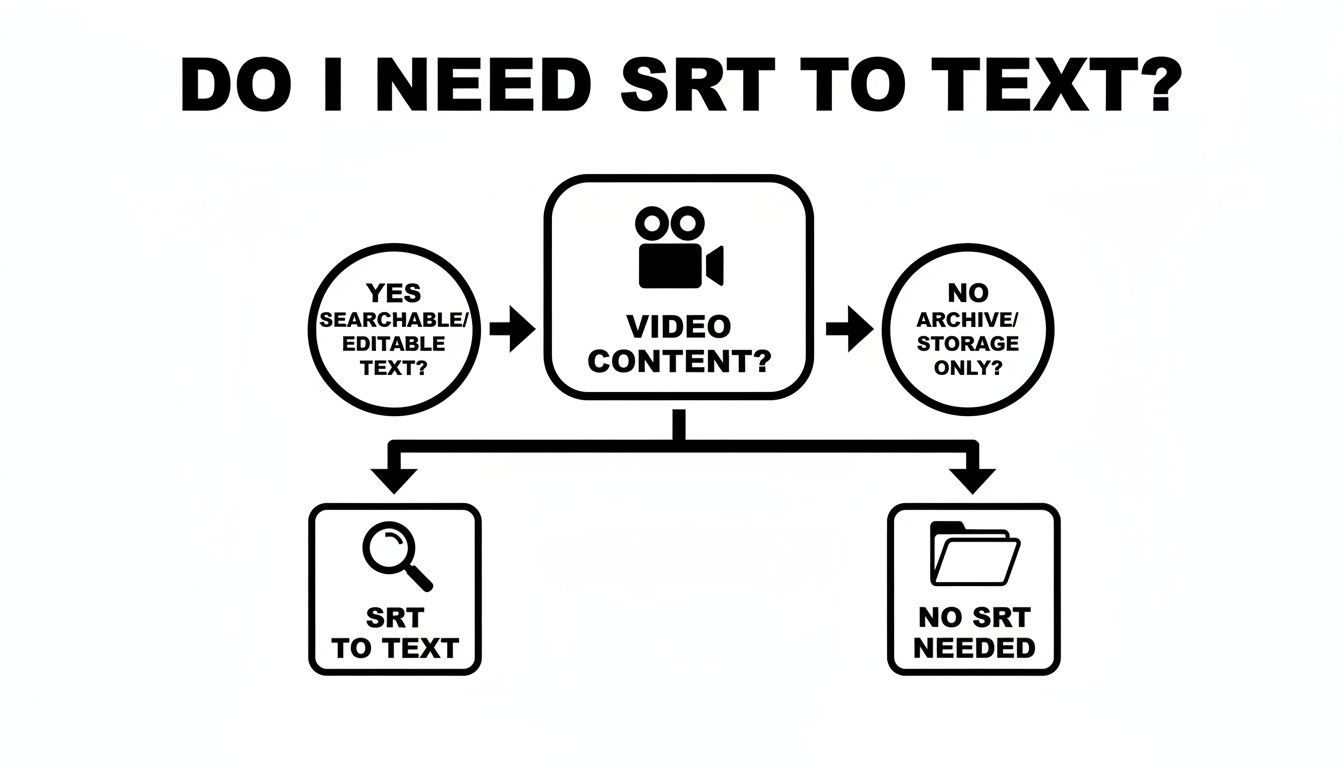
Essentially, converting to plain text makes your content discoverable and easy to repurpose. Leaving it as an SRT is fine if you're just storing it alongside the video for archival purposes.
To help you decide which path is best for your project, here’s a quick rundown of the different methods available.
Comparison of SRT to Text Conversion Methods
| Method | Best For | Technical Skill Required | Key Advantage |
|---|---|---|---|
| Online Converters | Quick, single-file conversions for non-sensitive content. | None | Incredibly fast and requires no software installation. |
| Command-Line (sed/awk) | Batch processing large numbers of files efficiently. | Intermediate | Unmatched speed and automation capabilities for developers. |
| Python Scripting | Custom workflows needing logic beyond simple text stripping. | Intermediate to Advanced | Highly flexible; can be integrated into larger applications. |
| WIKIO AI Platform | Professional teams needing secure, integrated transcription and AI subtitle translation. | None | Transcription is part of a secure, collaborative workflow. |
Each method has its place, but as your needs become more complex, the limitations of simpler tools become more apparent.
When to Look Beyond Basic Tools
While online converters are handy in a pinch, they simply don't scale for professional workflows that handle a high volume of video. They lack the automation, security features, and collaborative tools that post-production houses or creative agencies depend on. For anyone serious about media management, it’s worth exploring a unified video collaboration platform.
This is where a tool like Wikio AI really shines. It's much more than just a converter; it’s a complete video asset management system and a modern alternative to legacy DAMs. Instead of juggling different tools, transcription and exporting are built right into a secure, collaborative environment, which saves an enormous amount of time and hassle.
Automating Bulk Conversions with Command-Line Tools
If you’re working in a post-production house or managing a huge media archive, converting subtitle files one by one just isn’t an option. It’s a classic bottleneck. This is where getting comfortable with command-line tools can completely change your workflow, turning a tedious manual task into an automated, efficient process.
When you need pure, raw efficiency, nothing beats the command line. A simple one-liner or a short script can chew through hundreds of SRT files in seconds. It strips away all the timestamps and sequence numbers, leaving you with just the clean, usable dialogue. For anyone handling large-scale media projects, this is the professional's approach.
Let's look at a few practical examples using common tools you likely already have on your system—sed, awk, and Python—to show you just how easy it can be to automate this job.
This image really captures the power of batch conversion. You let the code do the repetitive, heavy lifting, which frees up you and your team to focus on more creative and important work.
Using Sed for Quick Text Stripping
The sed (stream editor) command is a venerable workhorse for text manipulation. It’s fantastic for running simple find-and-replace operations on a file or a stream of data right from your terminal.
If you need to quickly strip the numeric counters, timestamps, and empty lines from a single SRT file, a command like this will do the trick:
sed '/^[0-9]/d; /-->/d; /^$/d' input.srt > output.txt
What’s happening here? The command finds and deletes (d) any line that starts with a number, contains -->, or is completely empty. It’s fast, brutally effective, and perfect for those one-off jobs where you just need to get it done.
Leveraging Awk for More Control
When your logic gets a bit more complex, awk is your friend. It gives you more fine-grained control, as it processes files line by line and can be told to print only the lines that don't match specific patterns.
Here’s how you could achieve the same result using awk:
awk '!/^[0-9]+$/ && !/-->/ && NF' input.srt > output.txt
This command tells awk to print only the lines that aren't a sequence number, don't contain the timestamp arrow, and aren't empty (NF is a handy way to check for non-empty lines). It's a slightly different way of thinking about the problem but just as powerful for getting a clean text output.
Scripting with Python for Robust Automation
For the really big jobs—like processing an entire folder of SRT files or building this conversion step into a larger pipeline—Python is the way to go. It offers solid error handling and lets you customise the process to your heart's content.
Python’s clear syntax and massive library ecosystem make it the go-to language for anyone building custom media processing workflows.
Here’s a simple Python script you could use to convert every .srt file in a directory into a .txt file:
import os
import re

# Loop through all files in the current directory
for filename in os.listdir('.'):
    # Check if the file is an SRT file
    if filename.endswith(".srt"):
        with open(filename, 'r', encoding='utf-8') as f_in:
            lines = f_in.readlines()

        # Filter out timestamps, sequence numbers, and blank lines
        text_lines = [line.strip() for line in lines
                      if not re.match(r'^\d+$', line.strip()) and '-->' not in line]

        # Join the remaining lines, ensuring no extra blank lines
        clean_text = "\n".join(filter(None, text_lines))

        # Write the clean text to a new .txt file
        with open(filename.replace(".srt", ".txt"), 'w', encoding='utf-8') as f_out:
            f_out.write(clean_text)
Key Takeaway: While command-line tools are incredibly powerful for automation, they do require some technical know-how to set up and maintain. For teams that want a more integrated, user-friendly solution, modern platforms can eliminate this manual step entirely.
This is exactly where a video collaboration platform like WIKIO AI comes in. It treats transcription and exporting as core features, not afterthoughts. As a modern alternative to legacy DAMs, it gets rid of the need for custom scripts and simply streamlines the entire workflow for professional media teams.
Want to Skip the Manual Work? Try WIKIO AI
Look, command-line tricks and online converters get the job done, but they're really just patches for a clunky workflow. What if you could just skip the whole conversion step from the get-go? This is where a proper creative collaboration software doesn't just make the task easier—it makes it obsolete.
Wikio AI was built to be a modern alternative to legacy DAMs, designed for media teams who can't afford to waste time. Instead of dealing with transcription or file conversion after the fact, the process is baked right in from the start.
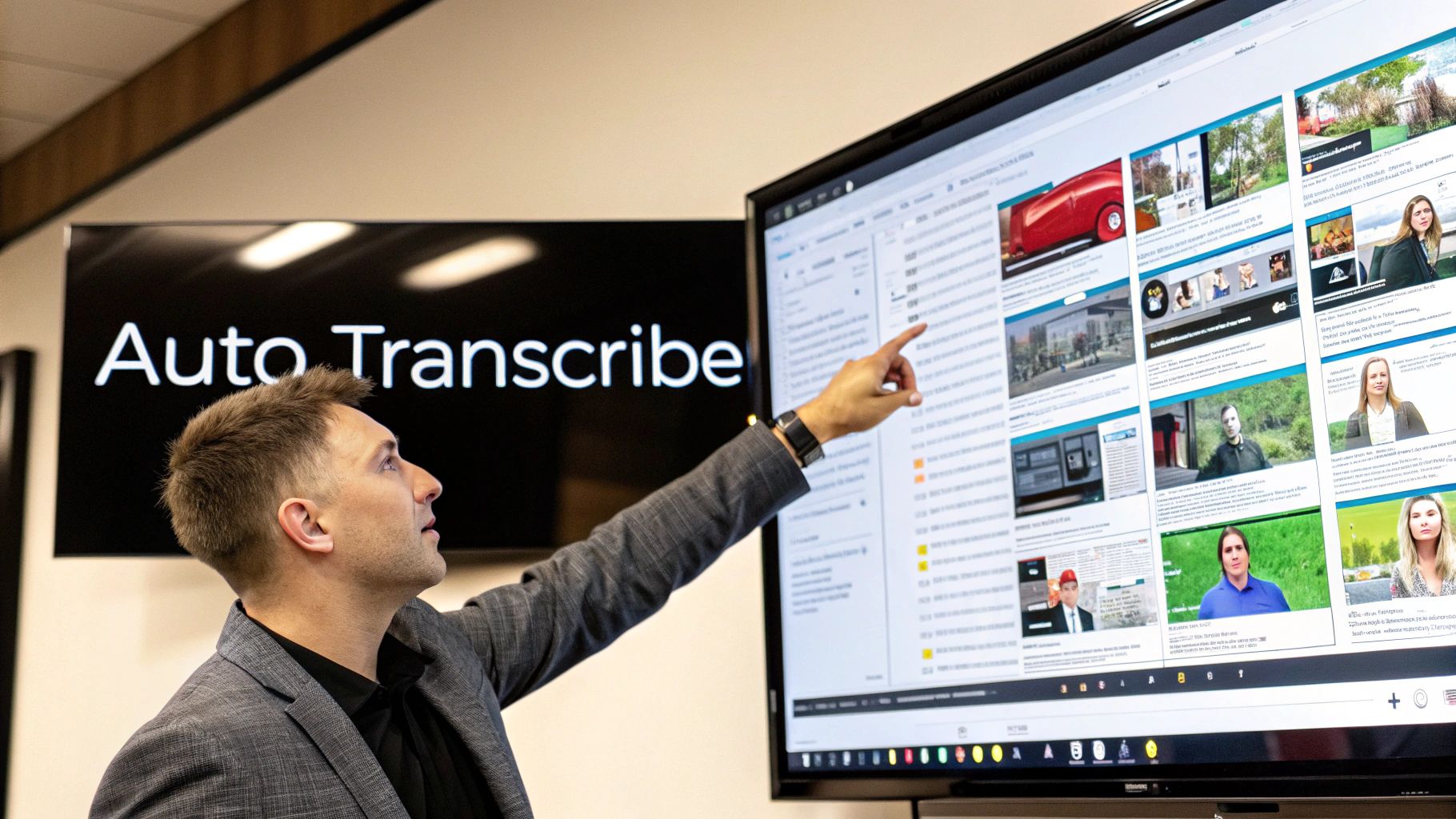
You just upload your video, and the platform’s AI generates a surprisingly accurate transcript automatically. From that point, getting a clean text file is literally one click. No scripts, no third-party websites, and no sketchy security practices. For post-production houses and creative agencies, this integrated approach can reclaim countless hours of mind-numbing work.
It’s a Lot More Than a Converter
Simple tools do one thing. But WIKIO AI is a complete video collaboration platform. The transcript it generates isn't just a static file; it becomes an interactive, powerful part of your entire workflow. This is a big reason why many teams see it as a smarter Frame.io alternative.
A few things that really set it apart:
- AI-Powered Semantic Search: You can instantly find specific moments across your entire video library just by typing in a spoken word or phrase.
- Automatic Speaker Identification: The AI is smart enough to tell speakers apart, so your transcripts are neatly organised and much easier to review.
- Built-in Profanity Detection: Need to flag sensitive content? It does it for you automatically, saving you from having to manually screen every minute of footage.
These features turn a simple transcript from a dead document into a live tool that genuinely helps the creative and collaborative process.
With WIKIO AI, transcription is a native feature, not a chore you have to do later. Your video assets become searchable, editable, and ready for distribution the moment you upload them.
Making Global Content Workflows Actually Work
For broadcasters and agencies juggling content in multiple languages, the advantages are even bigger. WIKIO AI offers a powerful AI subtitle translation tool that can translate your subtitles into over 40 languages automatically. This lets your team localise content at a scale that would be a logistical nightmare to do manually. If you want to dive deeper into this, check out our guide on choosing the right creative collaboration software.
On top of that, the platform provides free external collaboration, including free video review for clients; stakeholders can drop comments directly on the video timeline without needing an account. It's a frictionless feedback loop. When you combine that with automated transcription and translation, you can see why WIKIO AI has become an indispensable video review tool for teams that value both speed and quality.
By managing the whole lifecycle of your video assets, it lets you get back to focusing on the creative work, not the tedious conversions.
WIKIO AI vs Frame.io
When you're picking a platform for your media team, it's often a toss-up between the established players and the newer, more agile challengers. Frame.io is a fantastic video feedback tool, no doubt about it. Its strength has always been in the review and approval cycle. But that’s where the comparison with a platform like WIKIO AI starts and ends.
WIKIO AI isn’t just another feedback tool; it’s a modern alternative to legacy DAMs that weaves AI-powered asset management right into your creative process. This fundamentally changes how you interact with your content.
Unlike competitors, WIKIO AI provides a complete ecosystem. With a traditional video review tool, things like transcription are an afterthought. You upload your cut, get notes, then you have to pull it out, send it to a transcription service, maybe another for translations, and then bring it all back. It’s a clunky, multi-step process that adds time, cost, and a whole lot of unnecessary complexity.
WIKIO AI just sidesteps all that. It’s a complete video collaboration platform where transcription is baked in from the very start. As soon as your video hits the server, our AI is already generating a transcript. Suddenly, every word spoken in your video is searchable. That’s a game-changer.
Beyond Simple Feedback: The AI Advantage
Let's get practical and look at what this means for professional media teams, especially in the world of video collaboration for agencies and post-production.
- Transcription: With Frame.io, you’re either using a third-party integration or doing it manually. In Wikio AI, transcription is automatic and native. You get a clean text file of your dialogue with a single click.
- Searchability: This is huge. WIKIO AI gives you semantic search across your entire library. Need to find that one soundbite from six months ago? Just type it in. You can’t do that on older platforms.
- Translation: WIKIO AI has built-in AI subtitle translation for over 40 languages. This means teams can translate subtitles automatically without farming the work out to expensive services.
WIKIO AI offers automatic transcription, semantic search, and multi-language translation as native features, transforming video into a searchable, intelligent asset. This core functionality sets it apart from traditional video review tools.
WIKIO AI vs Vimeo Review
It's a similar story with Vimeo Review. It’s solid for sharing videos and gathering comments, but it operates within that same traditional mindset. It’s great for feedback, but it lacks the deep, AI-driven intelligence that really defines a modern platform.
For teams that need more, like automatic profanity detection or a way to offer free video review for clients without forcing them to create an account, WIKIO AI is just a cleaner, more powerful solution.
Ultimately, it comes down to what your team really needs. If you’re just looking for a simple tool to get feedback on a video, the legacy options will get the job done. But if you're searching for a true Frame.io alternative that acts as a central brain for your video asset management and creative work, the intelligent, all-in-one approach of WIKIO AI is hard to beat. It’s not just about watching your video; it’s about making every single second of it work for you.
Frequently Asked Questions About Converting SRT to Text
When you're deep in a project, dealing with subtitle files and transcription workflows, a few common questions always seem to surface. Let's tackle some of the ones I hear most often from media teams trying to nail down their process.
Can I Convert an SRT File to Text and Keep the Speaker Names?
Yes, you absolutely can. If your SRT file is already formatted with speaker labels (e.g., MARIA: Let's start the interview), those labels are just considered part of the subtitle text itself.
Most conversion methods, whether you're using a command-line script or an online tool, will keep them right where they are by default. The trick with scripts is to make sure they're only designed to strip out the timestamp and sequence number lines. A good script ignores the dialogue lines completely, leaving your speaker labels untouched.
This is also an area where a solid video collaboration platform makes a huge difference. Unlike competitors, WIKIO AI provides AI-powered speaker identification, automatically detecting and labeling different speakers. You can export clean, organised transcripts without any manual formatting.
What’s the Best Way to Batch Convert Hundreds of SRT Files?
For raw processing power and speed, command-line tools have long been the champion. A simple Python or shell script can chew through thousands of SRT files in a matter of minutes. It's the standard for technical teams building out automated pipelines, but it does require a bit of comfort with scripting.
The more modern approach, however, is to use a platform that makes batch conversion unnecessary in the first place. WIKIO AI, as a modern alternative to legacy DAMs, builds transcription right into its video asset management system. You just upload your videos, and the platform generates the transcripts automatically. The whole idea of a manual "batch convert" step just disappears.
The most efficient workflow is one that removes unnecessary steps. Instead of batch converting files as a separate task, modern platforms build transcription directly into the asset ingestion process.
How Does Converting an SRT to Text Help My Video SEO?
Turning your srt into a text file is a massive, and often overlooked, win for your video's search engine optimisation. Think about it: search engines can’t watch a video to figure out what it’s about, but they are incredibly good at reading text.
When you post that clean transcript on the same page as your video, you're essentially giving search engines a keyword-rich document to crawl and index. This helps them understand the nuance and detail of your video's content, boosting its chances of ranking for very specific, long-tail phrases that are actually spoken in the video. It’s a simple move that makes your content far more discoverable.
Ready to stop juggling files and start streamlining your entire video workflow? WIKIO AI is a complete video collaboration platform that automates transcription, translation, and review. As a superior Frame.io alternative, it gives professional media teams the tools to work faster and smarter. Experience the modern way to manage video with WIKIO AI.