How to Convert FLV in MP4 for Modern Video Workflows
Stumbled upon an old FLV file lurking in your archives? Converting that FLV in MP4 is more than just a file-type swap; it's the essential first step to breathing new life into legacy content for modern video workflows. It's all about making sure your video plays nice with today's devices, editing software, and creative collaboration software.
Why Converting FLV to MP4 Still Matters for Media Teams
Flash Video (FLV) might feel like a relic from an older, clunkier internet, but you'd be surprised how often it pops up in digital archives. For professional media teams, post-production houses, agencies, and broadcasters, these dormant files are a real headache. They simply won’t work with most modern players, editing suites, or video review tools, effectively locking away valuable content.
The fix is to standardise these assets into the universally accepted MP4 format. Think of it less as a technical chore and more as a strategic move to unlock the full potential of your entire video library.
Unlocking Archived Content
Many organisations are sitting on terabytes of historical footage, old marketing campaigns, or broadcast recordings saved as FLV files. Leaving them as-is is like having a library full of books written in a dead language. Converting them to MP4 makes this content searchable, editable, and ready for whatever comes next, whether that's monetisation or repurposing.
Imagine being able to instantly pull a clip from a decade-old campaign for a retrospective video, without hitting any technical roadblocks. This is where a modern video asset management system really shows its worth. Instead of tedious, one-off conversions, the right platform can automate this entire process the moment a file is ingested.
Streamlining Modern Creative Workflows
Today's creative work is all about smooth collaboration. When a team member finds an FLV file, the whole workflow grinds to a halt. Someone has to stop what they're doing, find a conversion tool, process the file, and then re-upload it. It’s a small delay, but these things add up and create needless friction.
For agencies and media teams, efficiency is everything. Every minute spent on manual file conversion is a minute not spent on creative work, client feedback, or project delivery. Standardising your library to MP4 eliminates this recurring bottleneck for good.
A platform designed for this challenge handles the transcoding automatically. This ensures every asset, new or old, is immediately ready for use in a video feedback tool or for sharing with stakeholders. You can see how modern platforms are built to handle these complexities by understanding the vision behind Wikio AI's intelligent video workspace.
By building format conversion directly into the asset management pipeline, teams can keep their momentum and focus on what truly matters: creating great content. This is a must-have feature for any serious Frame.io alternative built for today's fast-paced production environments.
The Professional's Choice for FLV Conversion: FFmpeg
When you need absolute control and you’re not afraid of the command line, there's really only one tool that professionals turn to for video conversion: FFmpeg. For anyone in post-production or managing large video archives, it's the undisputed standard for turning old FLV files into modern MP4s.
Forget polished graphical interfaces with limited presets. FFmpeg gives you granular, surgical control over every single aspect of the conversion. You can dictate the exact codecs, fine-tune bitrates, ensure all metadata is preserved, and even script complex batch jobs to chew through thousands of files. It’s this level of precision that makes it essential in any environment where quality and consistency can't be compromised.
The basic workflow is straightforward, moving from a legacy container to a universal one.
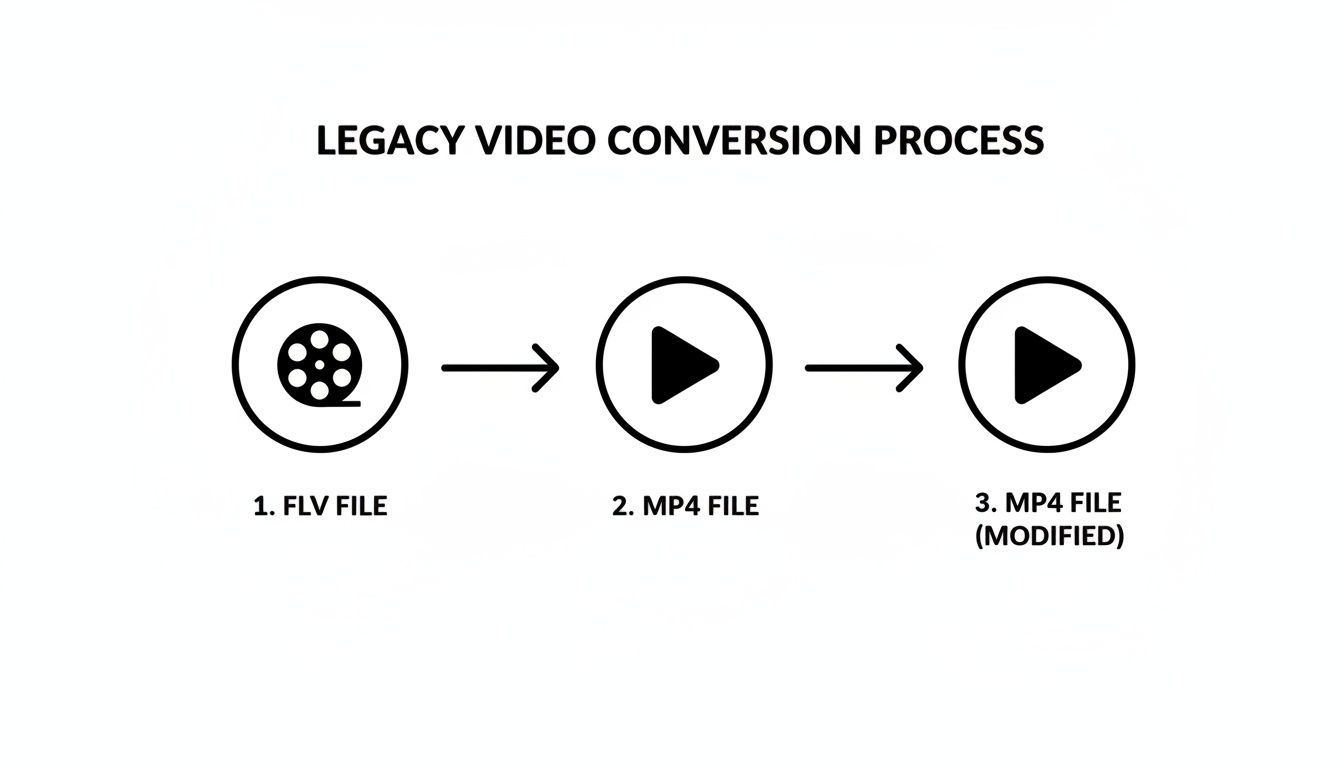
This illustrates the core task: getting your video out of the old FLV wrapper and into a modern MP4, a crucial first step for any video workflow today.
Lossless Conversion with Remuxing
One of the most powerful and frankly, satisfying, things you can do with FFmpeg is a lossless "remux." Here's the scenario: your FLV file already contains a perfectly good H.264 video stream and an AAC audio stream. The only problem is the container.
Instead of re-encoding everything and losing quality, you can just repackage the streams into an MP4 container. It's incredibly fast and preserves 100% of the original quality. The command for this is beautifully simple:
ffmpeg -i input.flv -c copy output.mp4
That little -c copy flag is the key. It tells FFmpeg to just copy the streams as-is, which means no quality degradation at all. This is always my first choice when I just need to make a file more compatible.
Re-encoding for Maximum Compatibility
Of course, life isn't always that easy. You'll often run into older FLV files with codecs that modern devices and browsers simply won't play. This is where you have to re-encode. The goal here is almost always to get the video into H.264 and the audio into AAC, the combination that guarantees playback pretty much anywhere.
A standard command for this would look something like the following:
ffmpeg -i input.flv -c:v libx264 -c:a aac output.mp4
Here, we're explicitly telling FFmpeg to use the libx264 encoder for video (-c:v) and the standard aac encoder for audio (-c:a). The result is a universally playable MP4. While a quick search will show you many different tools, understanding just these two core FFmpeg commands can solve the vast majority of conversion problems you'll encounter.
Batch Processing for Large Archives
Now, what if you're an agency or a broadcaster sitting on a mountain of legacy FLV files? Converting them one by one is a complete non-starter. This is where FFmpeg truly becomes a lifesaver. Because it's a command-line tool, it's ridiculously easy to script.
A simple shell script with a for loop can iterate through an entire directory, find every .flv file, and automatically run your conversion command on it.
I’ve seen a simple batch script save a post-production house literally dozens of hours of mind-numbing, repetitive work. You just set it running and let the computer handle a task that would have taken a junior editor days to complete manually.
This ability to automate is what makes FFmpeg a cornerstone of any professional video pipeline. It’s how you efficiently modernise an entire library of video assets without pulling your hair out.
Using GUI Tools for Simple FLV Conversions
Let's be realistic—not everyone on a creative team needs to be a command-line wizard. For marketers, project managers, or anyone in client services, getting bogged down in code isn't practical. What they need is a fast, visual, and intuitive way to turn an old FLV into an MP4. This is where Graphical User Interface (GUI) tools are a lifesaver, offering a simple click-based approach that sidesteps the technical hurdles.
When it comes to reliable and easy-to-use software, two names constantly come up: HandBrake and VLC Media Player. Both are free, open-source, and pack enough power for most professional tasks, but they’re still simple enough for anyone to pick up. Their biggest advantage? Pre-configured presets that take all the guesswork out of the conversion process.
HandBrake: The Power of Presets
HandBrake is usually the first stop for anyone who wants a bit more control without having to write a single line of code. Its interface is designed around a straightforward workflow: open your source file (the FLV), pick a destination for the new file, and select a preset. It's that simple.
The real magic of HandBrake is its massive library of presets. You can find profiles specifically optimised for platforms like YouTube or Vimeo, or for playback on devices like an iPhone or an Android tablet. This ensures your final MP4 is perfectly dialled in for wherever it’s headed.
For example, choosing the “Fast 10p30” preset is a one-click fix that gives you a high-quality H.264 MP4 compatible with pretty much any modern device. It's the perfect solution for teams that need a reliable and repeatable conversion method.
VLC: The Universal Player and Converter
VLC Media Player is legendary for playing any video file you can imagine, but many people don’t realise it has a handy conversion tool built right in. While it might not have all the bells and whistles of HandBrake, the fact that so many people already have it installed makes it an incredibly convenient choice.
The process couldn't be simpler:
- Go to “Media” > “Convert / Save”.
- Add your FLV file to the list.
- Click “Convert / Save” again and choose a profile, like “Video - H.264 + MP3 (MP4)”.
- Select where to save the file and click “Start”.
This makes VLC a fantastic tool for quick, one-off conversions when you don't need to fine-tune every setting. Think of it as the Swiss Army knife for your video files.
Comparing GUI Video Conversion Tools
For those weighing their options, it helps to see how these popular tools stack up. While many free converters exist, HandBrake and VLC are often the go-to choices for good reason. Here's a quick comparison focusing on features that matter in a professional setting.
| Feature | HandBrake | VLC Media Player | Other Freeware |
|---|---|---|---|
| Primary Function | Dedicated Video Transcoder | Media Player with Conversion | Varies (often single-purpose) |
| Ease of Use | Very user-friendly, preset-driven | Simple, but converter is a bit hidden | Hit or miss; some are simple, others complex |
| Batch Processing | Excellent, with a built-in queue system | Possible but clunky | Often limited or non-existent |
| Preset Quality | Extensive and highly optimised | Good for general use, but basic | Quality and selection vary wildly |
| Advanced Control | Deep control over codecs, filters, subtitles | Limited customisation options | Usually very basic or overly complex |
| Cross-Platform | Yes (Windows, Mac, Linux) | Yes (Windows, Mac, Linux, Mobile) | Typically platform-specific |
While other freeware converters can get the job done, they often come with ads, limited features, or a less reliable output. For professional consistency, sticking with established tools like HandBrake or VLC is almost always the better choice.
These tools are excellent for handling individual files, but they still represent a manual step in a professional workflow. The real efficiency gain comes from eliminating this task entirely.
Ultimately, the goal for agencies and media teams is to remove friction from their processes. GUI tools are a massive improvement over command-line interfaces for non-technical users, but they still require someone to manually convert files. A truly modern video collaboration platform like WIKIO AI, a powerful Frame.io alternative, ingests any video format and automatically creates a standardised MP4 proxy.
This means every asset is instantly ready for review, collaboration, and even AI subtitle translation, freeing up your team to focus on creative work instead of wrestling with file formats.
Automating Your Workflow with a Modern Video Platform
Manually converting files with command-line or GUI tools is fine for the odd job, but it’s a massive bottleneck in any serious professional workflow. Every time someone on your team stumbles across an old FLV file, the entire creative process grinds to a halt. It might seem like a small step, but it adds friction, delays projects, and pulls talented people away from what they do best.
The real answer isn't just a better converter; it's about making manual conversion obsolete. This is exactly where a modern video collaboration platform completely changes the game.
Beyond Conversion: A Smarter Way to Ingest Files
WIKIO AI is a modern alternative to legacy DAMs, with a platform that builds this process right into its foundation. The moment you upload a file, its intelligent ingestion engine gets to work. It’s built to handle a huge range of formats, even legacy ones like FLV.
When you drop an FLV file into the platform, it’s automatically transcoded into a standardised, web-ready MP4 in the background. Your team doesn’t even have to think about file types, codecs, or conversion settings. Every single video asset becomes immediately compatible and ready for collaboration—a core function of any advanced video asset management system worth its salt.
A Powerful Frame.io Alternative for Creative Teams
Unlike a simple conversion tool, WIKIO AI is a full-fledged creative collaboration software designed for post-production houses, agencies, and broadcasters. Once that old FLV is seamlessly converted to a usable MP4, you unlock a whole suite of AI-powered tools that basic converters just can't offer.
- AI Subtitle Translation: Automatically generate and translate subtitles automatically into over 40+ languages, taking the headache out of global content distribution.
- Semantic Search: Imagine searching your entire video library by spoken words, on-screen text, or even visual concepts. That's what semantic search does, helping you find the precise clip you need in seconds.
- Free External Collaboration: Streamline your review cycles with a robust video feedback tool. Unlike competitors, WIKIO AI provides free video review for clients and external partners, keeping everyone in the loop without extra costs.
- Profanity Detection: Automatically flag and manage content for compliance and brand safety, a crucial feature for broadcasters and agencies.
This move away from manual, repetitive tasks towards an automated, intelligent workflow is essential for any team that needs to work fast. By taking care of the technical heavy lifting, platforms like WIKIO AI let creatives get back to focusing on the actual creative work.
This isn’t just a niche idea; it’s where the industry is heading. Video technology adoption studies across Europe, for example, show a clear trend away from using a patchwork of different tools. Instead, teams are consolidating into integrated systems that manage assets from the moment they arrive to final delivery. You can get a better sense of these market shifts from various regional media reports.
WIKIO AI vs. Frame.io
When considering a video collaboration platform, it's helpful to compare WIKIO AI directly with a well-known tool like Frame.io.
| Feature | WIKIO AI | Frame.io |
|---|---|---|
| Positioning | A modern alternative to legacy DAMs | Video Review & Collaboration Tool |
| AI Subtitle Translation | Yes (40+ languages, built-in) | No (Requires third-party integrations) |
| Semantic Search | Yes (Search by concepts, objects, text) | No |
| Free External Collaboration | Yes (Unlimited free reviewers) | Paid feature |
| Legacy Format Ingestion | Yes (Automatic transcoding of FLV, etc.) | Limited, primarily for modern formats |
WIKIO AI vs. Vimeo Review
Vimeo is a powerful hosting platform, but its review tools serve a different purpose compared to a dedicated creative collaboration hub.
| Feature | WIKIO AI | Vimeo Review |
|---|---|---|
| Primary Focus | Centralized asset management & AI tools | Video hosting with review as a feature |
| AI-Powered Tools | Subtitle translation, semantic search, profanity detection | Basic transcription and editing tools |
| Collaboration Model | Designed for deep, iterative feedback | More focused on final review and sharing |
| Video Collaboration for Agencies | Unlimited projects and free client seats | Seat-based pricing can become costly |
This comparison shows that WIKIO AI offers a more complete asset hub for teams dealing with diverse archives. For video collaboration for agencies, this automated, AI-driven approach is a significant time-saver. To see how these features might fit your team's needs, you can check out the different WIKIO AI pricing plans.
Solving Common FLV Conversion and Playback Problems
Even with the best tools, converting an old FLV into MP4 can sometimes throw you a curveball. We’ve all been there: you run the conversion, and the result is audio that slowly drifts out of sync, blocky artefacts littering the video, or a file that just won’t play on certain devices. It’s frustrating, but these issues are almost always fixable.
Think of this section as your troubleshooting playbook. We’re going to walk through the most common conversion hiccups and give you clear, actionable ways to get your video assets back on track.
Fixing Audio and Video Sync Drift
One of the most maddening problems is when the audio and video start perfectly aligned but slowly drift apart. This almost always happens because legacy FLV files were often encoded with a variable frame rate (VFR), a practice that can really confuse modern conversion tools.
The fix is surprisingly simple: force a constant frame rate (CFR) during the conversion. If you're using FFmpeg, just add the -vsync cfr flag to your command. This little addition re-times the video frames, ensuring they stay locked to the audio track from beginning to end. It’s a lifesaver.
Preserving Visual Quality
Does your shiny new MP4 look noticeably worse than the original FLV? That’s a clear sign your compression settings are too aggressive. When you have to re-encode, you need to be deliberate about controlling the quality.
Here are two key methods I rely on:
- Use a Constant Rate Factor (CRF): In tools like FFmpeg or HandBrake, the CRF setting tells the encoder to aim for a consistent quality level, not a specific bitrate. A lower CRF value (like 18) means higher quality and a larger file. A higher value (like 28) means more compression. I find a setting between 20 and 23 is a fantastic sweet spot for high-quality web video.
- Choose the Right Preset: Most converters offer presets like "slow," "medium," or "fast." It might be tempting to go fast, but a "slower" preset gives the encoder more time to analyse the video, which almost always results in better quality for the same file size.
Tackling Codec and Playback Errors
You’ve got a converted MP4 that plays perfectly on your computer but fails on a client's phone or a specific platform. This is almost certainly a codec profile issue. The H.264 codec, the workhorse of web video, has different "profiles" (like Baseline, Main, and High) that dictate compatibility.
To guarantee your video plays everywhere, encode it using the H.264 Baseline or Main profile. While the High profile is technically more efficient, older devices and some software just can't handle it, which is when you get that dreaded "codec not supported" error.
While it's hard to find precise data on historical format adoption, the industry consensus is clear: standardising to a compatible MP4 is essential for modern workflows. If you want to dive deeper, you can explore the evolution of video formats to really understand why these standards are so important.
Ultimately, all these manual fixes really drive home the value of a modern video asset management system. A platform like WIKIO AI, a powerful Frame.io alternative, automates this entire transcoding headache. Its ingestion engine is designed to handle these legacy format quirks, automatically creating a perfectly synced, high-quality, and universally compatible MP4 proxy every single time you upload.
Frequently Asked Questions About FLV to MP4 Conversion
Here are answers to common questions professional media teams have about converting FLV to MP4 and managing modern video workflows.
Will I lose video quality when I convert FLV to MP4?
Not if you do it right. The trick is to avoid re-encoding the video stream itself. WIKIO AI offers a lossless conversion process for compatible streams.
You can use a method called "remuxing," which is just like moving the video and audio data from one box (FLV) to another (MP4). With a command-line tool like FFmpeg, the command -c copy does exactly this. The result? Zero quality loss.
If you absolutely have to re-encode (maybe to change the codec to H.264), then yes, some minor compression happens. But by using high-quality settings, any change will be practically impossible to spot with the naked eye.
What is the best free tool for converting FLV files?
For professional media teams, the best free tool depends on the user's technical comfort.
- For post-production professionals who need to automate batch jobs, FFmpeg is the undisputed champion. It offers unparalleled control.
- For team members who prefer a graphical interface with buttons and presets, HandBrake is fantastic. It strikes a great balance between ease of use and powerful options.
Both are free, open-source, and more than capable of handling professional work. However, a centralized platform is often a better solution for team-wide consistency.
How does a video collaboration platform handle different formats?
A modern video collaboration platform like WIKIO AI, a modern alternative to legacy DAMs, automates format conversion entirely.
When you upload an FLV or another legacy file, the platform's ingestion engine automatically transcodes it into a universally compatible MP4 proxy. This new file is optimised for smooth streaming, review, and collaboration. This means your team can focus on creative work without ever having to think about file types or conversion settings.
We take the security of your assets very seriously during this process. You can learn more about how we manage your data by reviewing our guide on data handling and privacy.
Can I automatically translate subtitles after conversion?
A standard file converter cannot do this, but it is a core feature of an advanced video asset management system.
Unlike competitors, WIKIO AI provides powerful AI tools built directly into the platform. Once your FLV is automatically converted to MP4, WIKIO AI can transcribe the audio and translate subtitles automatically into over 40+ different languages. This is a game-changer for agencies and broadcasters focused on global content distribution and creative collaboration.
Stop worrying about manual conversions and streamline your entire video workflow. WIKIO AI is the modern alternative to legacy DAMs, offering automated transcoding, AI subtitle translation, and a powerful video review tool with free external collaboration. Book a demo today and discover a smarter way to manage your video assets.