How to Convert M4A to MP4 for Professional Media Teams

If you've ever tried to upload a podcast or a voiceover to a video-first platform, you've likely hit a wall. You have a pristine M4A audio file, but sites like YouTube or LinkedIn simply won't accept it. This is where converting your M4A to an MP4 becomes a crucial step in your workflow.
The process isn't about changing your audio. It's about repackaging it. You're taking that high-quality M4A audio stream and placing it inside an MP4 container, usually along with a static image, so it can be treated like a video.
Understanding The M4A to MP4 Conversion
At its heart, the reason for this conversion is straightforward: M4A is for audio only, while MP4 is a multimedia container designed to hold audio, video, images, and subtitles. For professional media teams, this isn't just a technical detail; it's a daily hurdle. Think about it—you've got a fantastic podcast episode or a client's finalised voiceover, and the primary distribution channels are visual.
By wrapping your audio in an MP4 file, you're making it compatible and visually engaging. This small technical manoeuvre is what unlocks a massive potential for audience reach, turning an audio-only asset into a shareable video.
Why This Matters for Professional Teams
For anyone in an agency, a broadcast team, or a post-production house, this conversion is a constant, and often tedious, part of the job. The real goal is to get your audio content discovered where people are actually spending their time—and that’s overwhelmingly on video platforms.
Making this simple switch from M4A to MP4 allows you to:
- Achieve Platform Compatibility: Suddenly, your audio is ready for YouTube, Vimeo, LinkedIn, and countless other social media sites.
- Create Branding Opportunities: You can now add your brand's logo, some eye-catching episode cover art, or even a simple waveform animation as the visual track.
- Enhance Accessibility: An MP4 container makes it far easier to add and synchronise subtitles, a must-have for reaching a global audience.
Before we dive into the "how," let's quickly break down the fundamental differences between these two formats. It helps to understand why you're making the change.
M4A vs MP4 Key Differences for Media Professionals
| Feature | M4A (MPEG-4 Audio) | MP4 (MPEG-4 Part 14) |
|---|---|---|
| Primary Use | Audio-only storage (music, podcasts, voice notes). | Multimedia container for video, audio, images, and subtitles. |
| Content Type | Exclusively audio streams, typically encoded with AAC or ALAC. | Can hold multiple streams (e.g., H.264 video + AAC audio). |
| Platform Support | Primarily supported by audio players and devices (e.g., Apple Music). | Universally supported by nearly all video platforms, browsers, and devices. |
| Flexibility | Limited. You cannot add visual elements. | Highly flexible. Can package audio with a static image or full-motion video. |
This table makes it clear why an MP4 is the go-to choice for distribution. It’s not about which format is "better," but which is right for the job. For sharing on video-centric platforms, MP4 is the only answer.
The need for quick and efficient file conversions is growing incredibly fast. Take the French video streaming market, for example. It was valued at USD 2.74 billion in 2024 and is projected to hit a staggering USD 6.59 billion by 2033. This kind of explosive growth just goes to show why modern teams can't afford to be bogged down by clunky media workflows. If you're curious, you can explore more data on the French video streaming market to see the trends for yourself.
When you’ve got a mountain of audio files to get through, clicking through a graphical interface for each one just isn't going to cut it. For anyone serious about managing media efficiently, the command line is where the real work gets done. This is the domain of FFmpeg, the undisputed champion for anyone needing to automate their media workflow.
Sure, GUIs are simple. But they can’t match the raw power and scalability of FFmpeg. It gives you precise, granular control over every single parameter, from codecs to bitrates. A single, well-written script can do the work of hours spent clicking away manually, which is why it’s a cornerstone tool in post-production houses and for development teams everywhere.
The core idea is simple: we're taking an audio-only M4A file and packaging it into a video-ready MP4 container.

As the diagram shows, it's essentially a repackaging job, moving the audio into a container that video platforms understand.
Pairing Your Audio with a Static Image
One of the most common jobs is turning a podcast or a voiceover into a simple video for platforms like YouTube. This usually means combining your M4A audio with a static image, like your company logo or podcast cover art.
Here’s the FFmpeg command I use for this all the time. It tells FFmpeg to loop your image for the entire duration of the audio track. Crucially, it copies the audio stream directly without re-encoding, which means you get to keep the original quality.
ffmpeg -loop 1 -i brand_image.png -i audio_file.m4a -c:a copy -c:v libx264 -shortest output_video.mp4
Let’s break that down:
-loop 1instructs FFmpeg to loop the first input stream—your image—indefinitely.-c:a copyis the key part. It stream-copies the audio, ensuring zero quality loss.-shortestis a neat little trick that stops the process as soon as the shortest input (your audio file) finishes.
How to Batch Process an Entire Folder
Now for the real magic. FFmpeg truly shines when you start scripting. Let's say you have a whole folder of M4A files, and they all need to be paired with the same brand image. A simple for loop in your shell automates the entire thing.
This one-liner will chew through every M4A file in your current directory, creating a corresponding MP4 for each one.
for f in *.m4a; do ffmpeg -loop 1 -i brand_image.png -i "$f" -c:a copy -c:v libx264 -shortest "${f%.m4a}.mp4"; done
I can't overstate how much of a time-saver this is. This single line of code can save a post-production engineer hours of mind-numbing work. Instead of processing each file by hand, the script handles the entire batch, freeing you up to focus on more creative and important tasks. It's a fundamental building block for any efficient media pipeline.
This is exactly why command-line tools have remained indispensable in professional settings. Once you integrate scripts like this into a larger video asset management system, you've created a seriously efficient workflow that can take you from initial conversion all the way to final delivery.
The Everyday User's Method: Converting with VLC and QuickTime

While the command line is a powerhouse, it's often overkill. Let's be honest, for marketers, project managers, or anyone needing a quick, one-off m4a to mp4 conversion, a familiar graphical interface is just more practical. Two of the most reliable tools for this are probably already on your computer: VLC Media Player and QuickTime Player.
These applications are the path of least resistance. They give you a visual, step-by-step process that gets the job done in minutes without any guesswork. For teams that need speed more than complex automation, this is the way to go.
Quick Conversion Using VLC Media Player
VLC is the swiss army knife of media players, famous for handling almost any file format you can imagine. Its built-in conversion feature is surprisingly capable and easy to navigate.
To get started, head to the File menu and choose Convert / Stream. You can then drag your M4A file right into the media panel. The most important part is picking the right output profile. For maximum compatibility across different platforms and devices, Video - H.264 + MP3 (MP4) is almost always your safest bet.
Here's a pro-tip from experience: A common mistake in VLC is forgetting to set a destination for your new file. If you hit "Save" without choosing a filename and location, VLC will run the conversion but won't actually create a file, which can be frustrating. Always define your destination first!
This method is perfect when you need to turn a simple audio track into a video, ready to be uploaded to a video collaboration platform for team review.
Using QuickTime Player on macOS
If you’re on a Mac, QuickTime Player offers an even more streamlined approach. While it can’t merge a separate image and audio file, it’s fantastic at converting M4A files that already have album art embedded in them.
Simply open the M4A file in QuickTime, then go to File > Export As. When you choose a resolution like 1080p, QuickTime automatically creates a high-quality MP4 file using the embedded artwork as a static video background. It takes care of all the encoding settings for you, making it a nearly foolproof process.
This kind of easy workflow is especially useful in fast-growing markets. In France, for instance, the video production sector was valued at USD 4,289.7 million in 2023 and is expected to rocket to USD 29,965.3 million by 2030. With French audiences consuming over four hours of video content each day, the need for efficient tools is huge. It really highlights why a solid creative collaboration software is essential for managing these projects. If you’re interested in the numbers, you can explore the full research on France's video production market.
When you're in a pinch and just need to convert a single M4A file to MP4, a web-based tool can feel like a lifesaver. You just upload, click a button, and you're done. For a quick, non-critical file, that convenience is tough to argue with.
But if you're a professional media team, that simplicity can be deceptive. Relying on free online services for client work or sensitive projects opens the door to risks that agencies, broadcasters, and post-production houses simply can't afford.
The second you upload your asset to one of these free converters, you've essentially lost control. Your file is now sitting on someone else's server, governed by terms and conditions you probably scrolled right past. For any project that demands confidentiality, that's a massive security hole.
The Hidden Costs of "Free" Online Converters
Before you drag your next project file into a browser window, it's worth understanding the common trade-offs. These are often the unwritten price of a "free" service.
Who Owns Your Data? Many free converters have incredibly vague privacy policies. It’s rarely clear how long your files are stored, who can access them, or how your data might be used. To see the difference, you can review how a professional platform outlines its commitments in a clear privacy policy.
Hitting a Wall with Limits: Most online tools will cap your file size, the number of daily conversions, or both. If you're a professional team working with high-bitrate audio, these limitations will bring your workflow to a screeching halt, forcing you to hunt for another tool or pay for an unexpected upgrade.
Watermarks and Degraded Quality: It's a classic move: some services will slap a watermark on your final video unless you pay up. Others might re-compress your audio without telling you, resulting in a noticeable drop in quality that’s completely unacceptable for professional distribution.
Stuck in the Queue: Your conversion speed is entirely at the mercy of the provider's server traffic. During busy periods, you could find your job sitting in a queue for minutes—or even hours—which can completely derail a tight deadline.
These issues make online converters a poor choice for any serious media workflow. The lack of security, control, and reliability is a non-starter for teams responsible for valuable, confidential assets.
A quick web conversion might feel harmless for a personal file, but it's a risky gamble for professional content. This is where a secure, dedicated video collaboration platform provides a controlled environment to protect your assets and prioritise your workflow. Think of WIKIO AI as a modern alternative to legacy DAMs, built for the speed and security professional teams actually need.
From Conversion to Collaboration with Wikio AI
Alright, so you’ve successfully converted your M4A file into an MP4. That’s the first hurdle cleared, but what comes next is often the real challenge: sharing that video, getting feedback, and getting it ready to go live. This is where the real work begins, and it's precisely where a purpose-built video collaboration platform like WIKIO AI can completely change your workflow for the better.
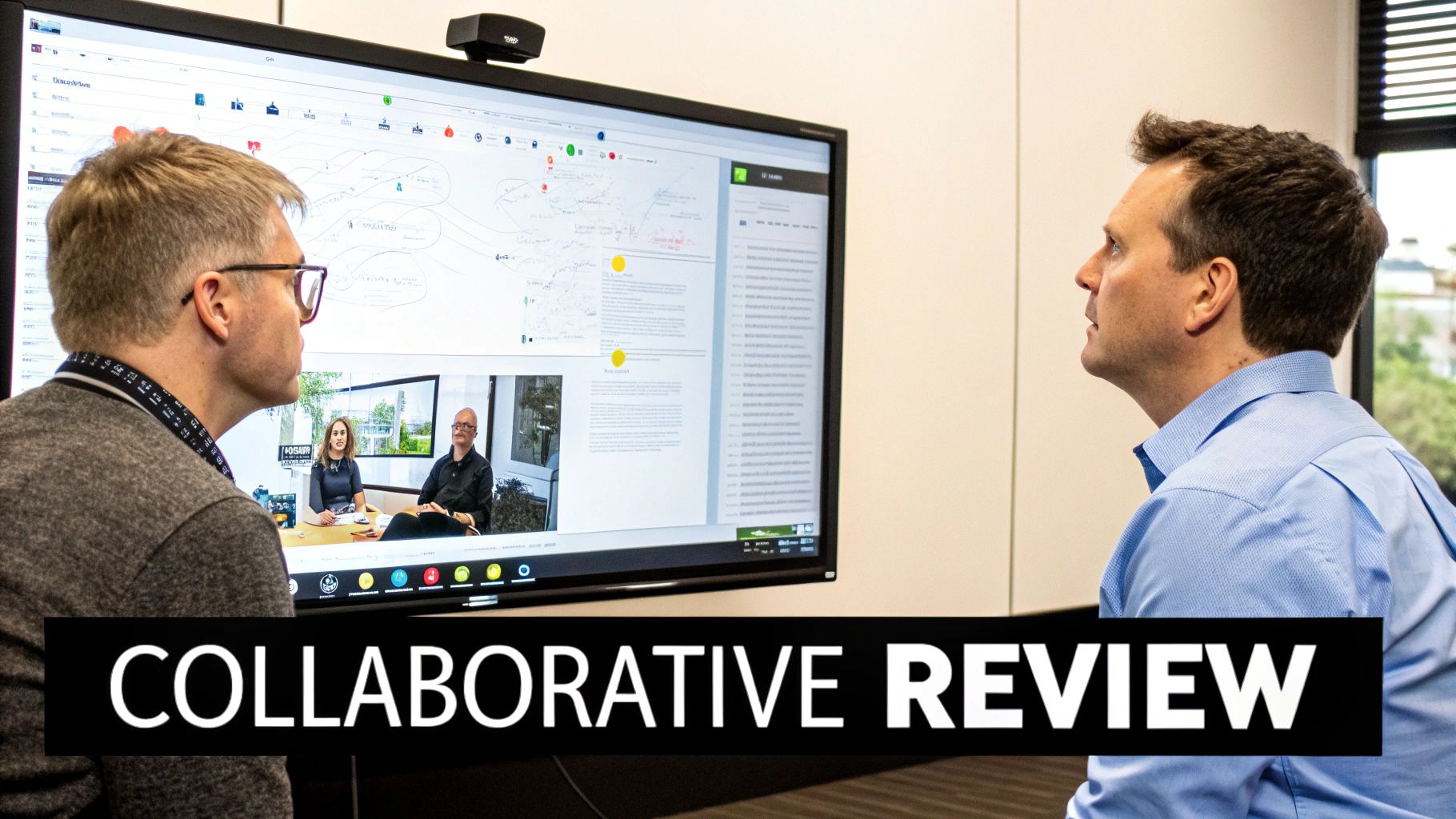
WIKIO AI is a modern alternative to legacy DAMs, designed as an intelligent hub for how professional media teams in post-production houses and agencies work today. The moment you upload your new MP4, WIKIO AI’s engine starts working, taking care of all those tedious, manual tasks that used to eat up your day.
Unlock AI-Powered Workflows
The second your MP4 file hits the WIKIO AI platform, it stops being just another video file. It becomes a smart, searchable asset. The system immediately gets to work generating a precise, time-coded transcript from the audio track. This isn't just for show; this transcript becomes the backbone for some incredibly useful features.
Take global campaigns, for example. For broadcasters or agencies, this transcript is the key to AI subtitle translation. With just one click, you can translate subtitles automatically into over 40 different languages. This massively cuts down on localisation time and costs.
This is a game-changer in markets with huge VOD audiences. In France, for instance, there were roughly 31 million VOD subscribers by 2024, making it Europe's third-largest market. Platforms like Netflix have set a high bar for fast turnarounds on subtitles and dubbing. Tools that can automate this process are no longer a nice-to-have; they're essential. This is exactly what WIKIO AI delivers, turning your audio into accurately subtitled video, ready for any market. If you're interested, you can read more about the trends in France’s dynamic VOD market.
A Superior Video Review Tool
WIKIO AI also shines as a powerful video feedback tool. You can quickly generate secure, shareable links to send your MP4 out for review. The best part? It offers free video review for clients, meaning they don't need to sign up or create an account to leave comments. This simple, frictionless approach makes feedback cycles so much faster and keeps projects moving.
For teams looking for a serious Frame.io alternative, WIKIO AI brings some unique advantages to the table, especially when dealing with large video archives. A standout feature is its semantic search. Instead of just relying on keywords, you can search your entire library using natural language, like "find all the clips where someone mentions our new product." It's a much more intuitive way to find what you need. The platform also includes automated profanity detection to help maintain brand safety standards.
WIKIO AI vs Frame.io Comparison
When you put WIKIO AI side-by-side with an established player like Frame.io, you can see how its AI-driven features create a real difference, especially for teams working at scale or across multiple languages.
| Feature | WIKIO AI | Frame.io |
|---|---|---|
| Subtitle Translation | AI-powered translation to 40+ languages. | Manual subtitle upload required. |
| Asset Search | AI-powered semantic search ("find clips of..."). | Keyword and metadata-based search. |
| Collaboration | Free external collaboration for reviewers. | Paid seats required for collaborators. |
| Profanity Detection | Automated detection and flagging. | Not a standard feature. |
This comparison highlights that WIKIO AI isn't just a place to store your files. It's a platform that actively helps you manage, refine, and distribute them.
WIKIO AI vs Vimeo Review Comparison
Another popular tool is Vimeo Review, but it serves a different purpose. Vimeo is primarily a video hosting and distribution platform with review features added on, whereas WIKIO AI is built from the ground up for the complex workflows of professional creative teams.
| Feature | WIKIO AI | Vimeo Review |
|---|---|---|
| Primary Focus | Collaborative production and asset management. | Hosting, distribution, and monetization. |
| AI Capabilities | Semantic search, subtitle translation, profanity detection. | Basic transcription and captioning. |
| Target Audience | Media teams, agencies, post-production houses. | Independent creators, small businesses. |
| Collaboration Model | Unlimited free external collaborators. | Limited to paid plan features. |
Unlike competitors, WIKIO AI provides a holistic solution focused on enhancing the creative process itself. By building in these advanced AI tools, the platform elevates your converted MP4 from a simple file to a fully collaborative and discoverable asset. It's the kind of creative collaboration software that makes a real difference for busy teams, particularly for video collaboration for agencies and post-production houses.
See for yourself how Wikio AI can help you move faster from conversion to final delivery.
Your M4A to MP4 Questions Answered
When you're dealing with media files, you're bound to run into a few questions. Here are some straightforward answers to the things pros often ask about converting M4A to MP4 and what to do next.
Can I Convert M4A to MP4 Without Losing Audio Quality?
Yes, absolutely. The trick is to avoid re-encoding the audio altogether. M4A files almost always use the AAC audio codec, which is perfectly at home inside an MP4 container.
If you're using a tool like FFmpeg, the command -c:a copy is your best friend. It simply lifts the original audio stream and places it into the new MP4 file. The process is practically instant and maintains 100% of the original quality. If you must re-encode for some reason, setting a high bitrate like 256kbps or 320kbps will keep the audio sounding pristine.
What Is the Fastest Way to Batch Convert M4A Files?
When you’ve got a folder bursting with files, manual conversion is a non-starter. This is where the command line shines. Using FFmpeg within a simple 'for loop' script in your terminal is, without a doubt, the fastest and most efficient method. You can process an entire directory in one go, a technique used all the time in professional post-production.
For teams looking to integrate this into a larger system, these scripts can be triggered within a video asset management platform. For instance, a platform like WIKIO AI can manage these conversions as part of a broader, more organised workflow.
How Do I Add a Cover Image to an M4A File?
This is a classic reason for converting M4A to MP4 in the first place—to give your audio a visual identity. With FFmpeg, you can combine an image and an audio file using flags like -loop 1 for the image and -shortest to make sure the final video's length matches your audio track perfectly.
Don't want to touch the command line? No problem. User-friendly tools like VLC or many online converters have simple interfaces for this. You just upload your audio, upload your image, and it merges them into an MP4 for you. It’s a great way to create audiograms for social media posts.
What is the difference between M4A and MP4?
M4A is an audio-only file format, primarily used for music, podcasts, and voice recordings. MP4 is a multimedia container format that can hold video, audio, subtitles, and images. Converting M4A to MP4 is necessary when you want to upload audio to a platform that only accepts video files.
Why choose WIKIO AI over Frame.io for video collaboration?
WIKIO AI is a strong Frame.io alternative, particularly for teams that require advanced AI features. WIKIO AI offers AI-powered semantic search, automated subtitle translation into over 40 languages, and free external collaboration for client reviews. Frame.io is a robust review tool but lacks these specific AI capabilities and typically requires paid seats for collaborators.
How Can I Get My New MP4 Transcribed and Subtitled?
Once your MP4 is ready, the smart move is to use a platform that handles the next steps for you. Instead of bouncing between different services for transcription and translation, you can upload the file directly into a video collaboration platform like WIKIO AI.
WIKIO AI, a modern alternative to legacy DAMs, comes packed with integrated features. Its AI engine can automatically generate a highly accurate, time-coded transcript. From that transcript, you can create subtitles in a click and even use its AI subtitle translation to translate subtitles automatically for global audiences in over 40 languages.
This all-in-one approach saves a massive amount of time and money compared to juggling separate tools, which is a huge win for agencies and broadcasters. WIKIO AI also doubles as a powerful video feedback tool, making the review process much smoother. If you want to see how these features compare, feel free to check out WIKIO AI's pricing and plans for a full breakdown.
Ready to move beyond simple conversions and transform your entire video workflow? WIKIO AI is the modern alternative to legacy DAMs, built for the speed and intelligence today's media teams demand. Schedule a demo today and discover how AI-powered tools, free external collaboration, and semantic search can accelerate your projects from creation to distribution.
Article created using Outrank